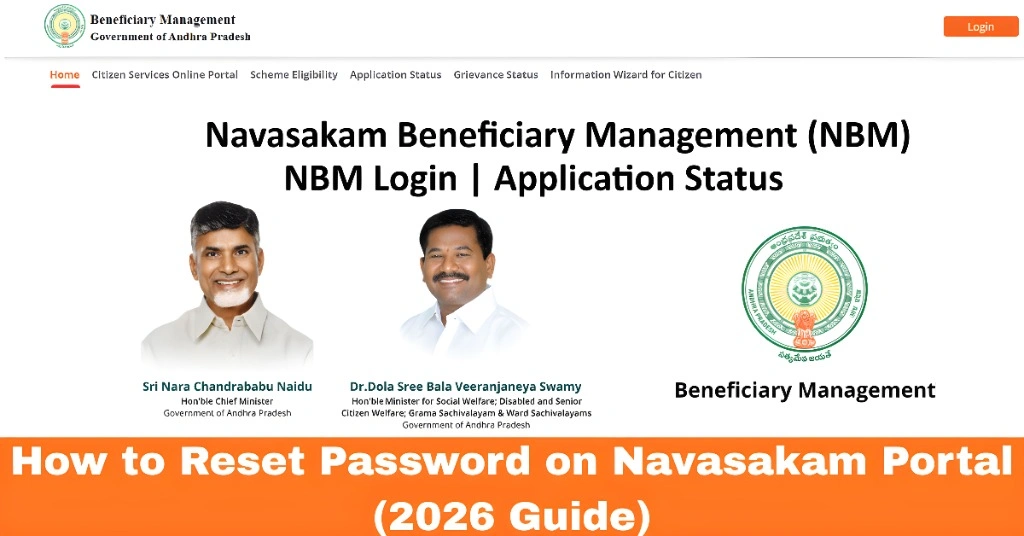
How to Reset Password on Navasakam Portal (2026 Guide)
If you forgot your password or are having trouble logging into the Navasakam Beneficiary Management (NBM) Portal in Andhra Pradesh, you don’t need to worry. You can reset your password easily online. This step‑by‑step guide will show you how to do it quickly and safely, even if you’re not tech‑savvy.
Why Password Reset Is Important?
The Navasakam portal helps you apply for welfare schemes, upload documents, check application status, track payments, and more. But to use all these features, you must log in securely. If you forget your password or it stops working, you might not be able to access your benefits. Resetting your password helps you regain access without losing your data or application progress. Let’s walk through how to do it.
You can also read: Navasakam Portal Scheme Change: What You Need to Know (2026)
Step‑by‑Step: How to Reset Your Password on the Navasakam Portal
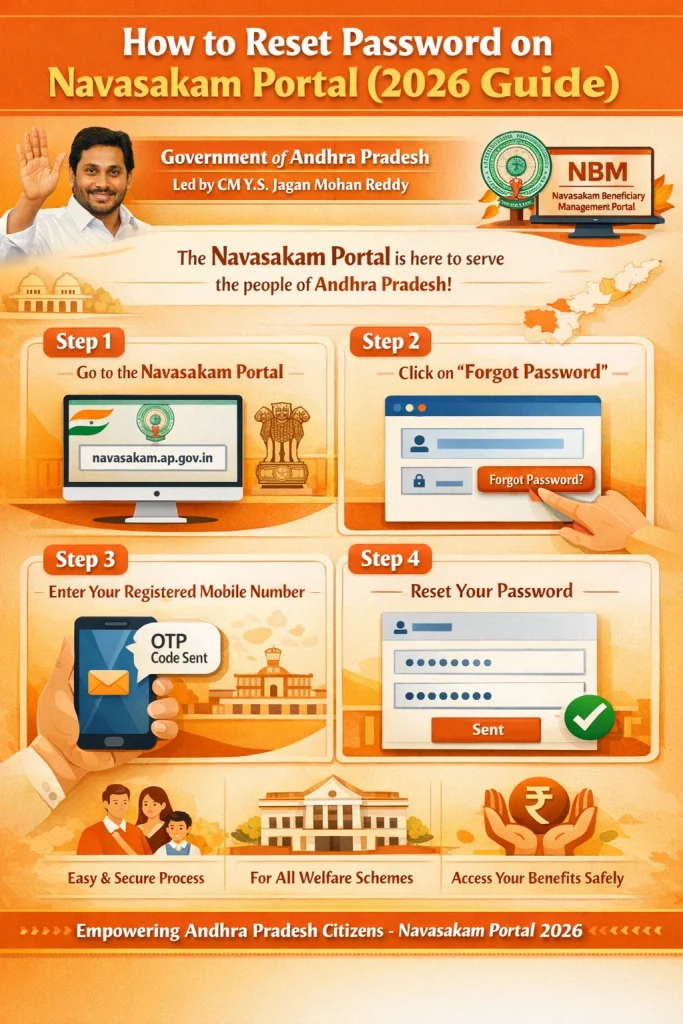
Open the Official Navasakam Portal
Open your web browser (Chrome, Firefox, etc.) and go to the official Navasakam Portal:
Visit the portal home page
Look for the login section
Make sure your internet is working and stable.
Click on “Forgot Password” or “Reset Password”
Under the login form, you will usually see a link that says:
Forgot Password
Reset Password
Trouble Logging In?
Enter Your Registered Aadhaar Number
The portal will ask you to provide your Aadhaar number — the same one you used when you registered.
Carefully enter your Aadhaar number
Double‑check for mistakes
This tells the system which account needs the reset.
Enter Your Registered Mobile Number
Next, enter the mobile number that is linked to your Aadhaar and Navasakam account.
This number will receive a One‑Time Password (OTP) to verify your identity.
Receive and Enter the OTP
Once you submit your Aadhaar and mobile number:
The portal will send an OTP (a 6‑digit code) to your registered mobile phone
Enter the OTP exactly as you received it
This step confirms that you own the account.
Create a New Password
After OTP verification, the portal will allow you to enter a new password.
Tips for choosing a good password:
Use 8–12 characters
Include letters and numbers
Avoid obvious combinations (like 123456 or abcdef)
Make it something you can remember.
Type the new password once — then re‑type it to confirm.
Submit and Login
After confirming your new password:
Click Submit or Reset Password
You will see a confirmation message
Now go back to the login screen
Enter your Aadhaar number and new password
Click Sign In
If everything was done correctly, you will be logged in successfully.
Tips to Avoid Password Problems Later
These tips help keep your account safe and reduce the chance of login trouble.
What to Do If OTP Doesn’t Arrive
If you don’t get the OTP:
Sometimes network or portal delays can slow down OTP delivery.
FAQs
Final Words
Resetting your password on the Navasakam Portal is simple when you know the steps. Just remember to use your registered Aadhaar and mobile number, enter the OTP correctly, and create a new password you can remember. This way, you can get back access to your account quickly and stay updated on your welfare applications and benefits.
If you ever get stuck, don’t hesitate to visit a Common Service Center (CSC) — they can help you reset the password and guide you through it. Let me know if you want a quick printable checklist for this process!