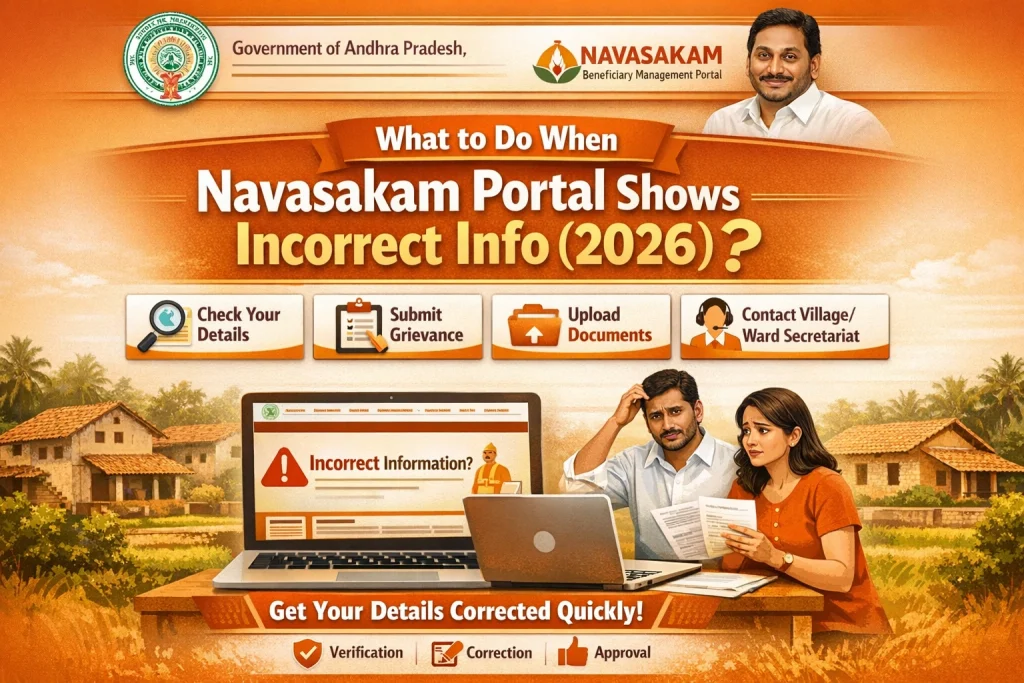
What to Do When Navasakam Portal Shows Incorrect Info (2026)
Sometimes when you log in to the Navasakam Beneficiary Management (NBM) Portal, you may see wrong or outdated information in your profile, application status, bank details, Aadhaar data, scheme name, or payment status. This can be confusing and may delay your benefit or cause rejection of your application.
This guide explains why incorrect info shows up, how to fix it step by step, and the best ways to update your details so your welfare benefits are processed smoothly.
Why Correct Information Matters
The Navasakam portal uses your personal, bank, and scheme details to verify your eligibility and release benefits. If any of your information is incorrect — even a small spelling mistake or wrong number — your application may get stuck, rejected, or delayed. Fixing this early ensures that your benefits (like pension, financial support, Amma Vodi, YSR schemes, etc.) reach you on time. Let’s go through how to correct wrong info on the portal in a clear, simple, and helpful way.
You can also read: How to Submit Navasakam Scheme Documents Online (2026 Guide)
Common Types of Incorrect Info on the Navasakam Portal
You may see errors in:
These errors can occur due to typos, outdated information, mismatched documents, or mistakes during data entry.
Step‑by‑Step: How to Fix Incorrect Info on Navasakam Portal
Log In With Your Aadhaar and Mobile
Visit the official portal and log in using:
This ensures you see accurate details tied to your account.
Go to Profile or Account Section
Once logged in:
Check fields such as:
Update Personal Details (If Allowed Online)
If the portal allows you to edit your personal information directly:
Some fields can be updated directly by you.
If You Cannot Edit Online: Use Grievance Request or Correction Request
Some information (like Aadhaar, bank account, or name change) may not be editable directly. In this case:
Raise a Correction Request
You’ll get a Request ID — keep it safe for tracking.
Correct Aadhaar Info (If Wrong)
If the error is in your name, date of birth, or Aadhaar number:
Once Aadhaar is corrected, you can re‑update the portal with new details.
Fix Incorrect Bank Details
If your bank account or IFSC code is wrong:
If editing is not allowed online:
Correct bank details ensure your benefit payments reach you without failure.
Update Scheme or Application‑Related Errors
If you accidentally applied to the wrong scheme:
The grievance section can help escalate this if direct edits aren’t possible.
Correct Uploaded Documents
If your documents are rejected or unreadable:
This prevents rejections due to poor quality files.
Track Your Request
After raising a correction or grievance:
Tracking ensures you know when the correction is approved.
Tips to Avoid Incorrect Info in Future
These small checks help you avoid mistakes and delays.
FAQs
Final Words
Seeing incorrect information on the Navasakam Portal can be frustrating, but most errors can be fixed with the right steps. Whether it’s updating personal details, fixing bank information, correcting an uploaded document, or changing a scheme choice, taking action early helps ensure your welfare benefits reach you without unnecessary delays.
If direct editing isn’t possible, the grievance/correction request feature and Common Service Centers (CSC) are there to assist you. With accurate information, your applications move faster and benefit processing becomes smoother.