How to Submit Navasakam Scheme Documents Online (2026 Guide)
Submitting documents is one of the most important steps when applying for welfare schemes on the Navasakam Beneficiary Management (NBM) Portal. If your documents are missing, unclear, or not uploaded correctly, your application may be delayed or rejected. This guide explains how to upload your documents online — step by step — in a way any user can follow.
Why Document Upload Matters
When you apply for a welfare scheme on the Navasakam portal, the government needs proof to confirm your eligibility. These proofs can be Aadhaar card, income certificate, bank passbook page, caste certificate, address proof, or other required files. Uploading them correctly matters because it ensures your application moves ahead smoothly without unnecessary delays. Even small mistakes like wrong file type or unreadable scans can cause problems. This guide will help you avoid those mistakes.
You can also read: Why Your Navasakam Portal Application Isn’t Approved 2026
Before You Start: What You Need
Before you begin uploading, make sure you have:
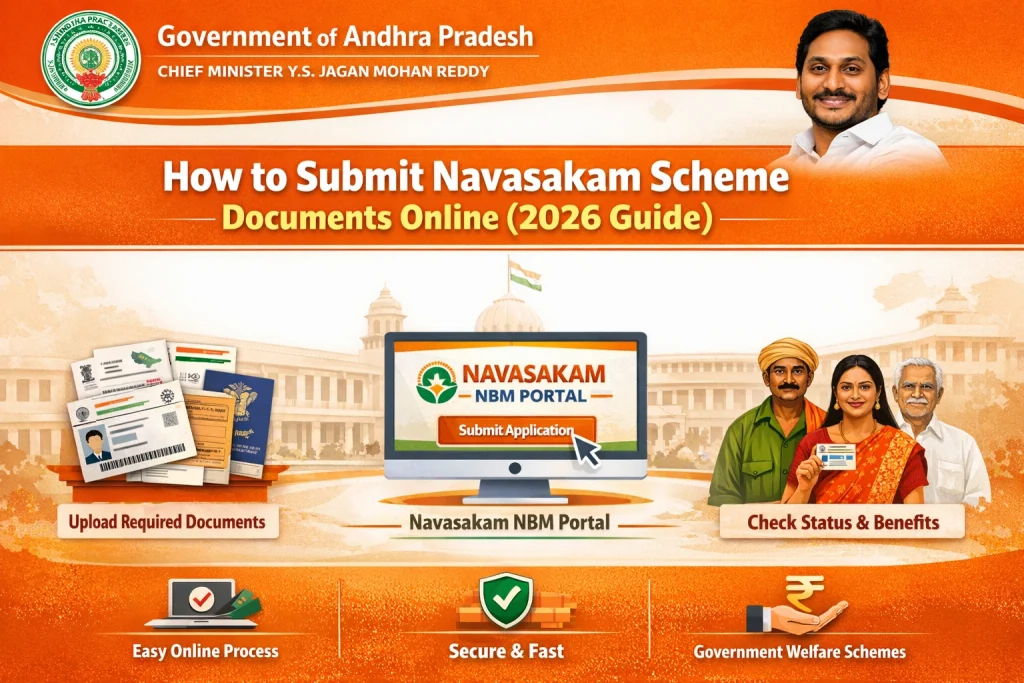
Step‑by‑Step: How to Submit Documents Online
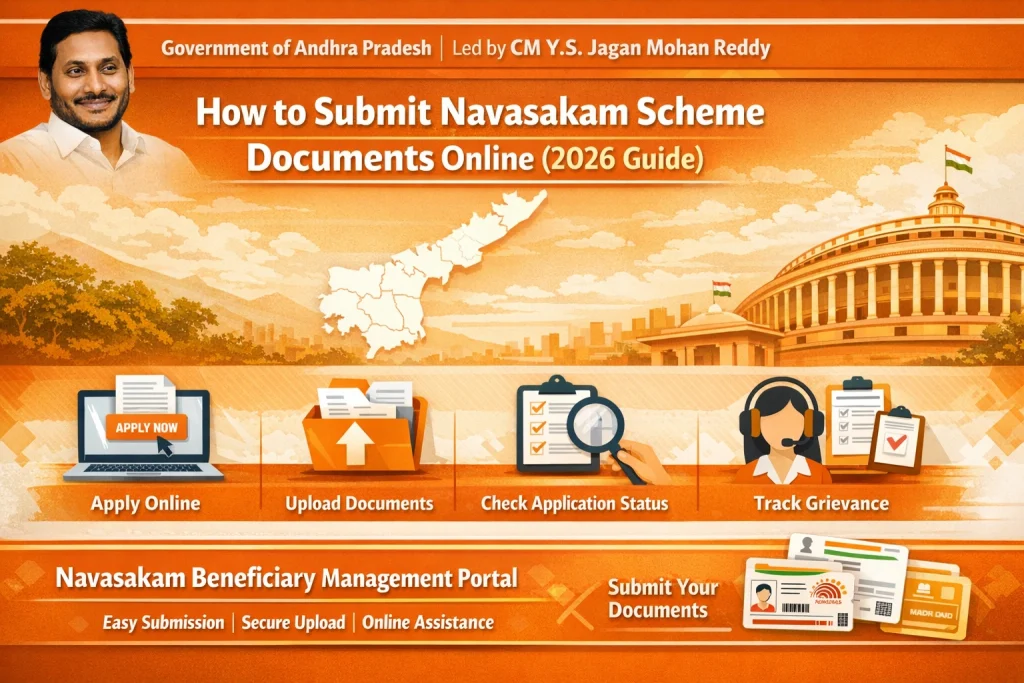
Visit the Official Navasakam Portal
Open your web browser and go to the official NBM portal:
Make sure your internet is stable so uploads are not interrupted.
Log In to Your Account
Use the credentials you registered with:
Enter the OTP sent to your phone to securely log in.
Go to ‘My Applications’
Once you’re logged in:
Choose the scheme for which you want to upload documents.
Click on ‘Upload Documents’
Under your selected scheme:
You will now see a list of documents required for that scheme.
Upload Each Document Carefully
Most schemes will ask for documents like:
| Document | Why It’s Needed |
|---|---|
| Aadhaar Card | Proof of identity |
| Income Certificate | Proof of income eligibility |
| Bank Passbook Page | To verify account for payments |
| Caste Certificate | If a benefit is category‑based |
| Address Proof | To confirm residence in Andhra Pradesh |
How to upload:
Check File Format and Size
Before uploading, ensure:
Tips:
Confirm and Submit
Once all required documents are uploaded:
The portal may show a message saying “Documents submitted successfully”
If you see errors, check the file format or try again.
Check Upload Status
You can always check if your documents were accepted:
If any file is rejected or requires correction, the portal will tell you what needs to be fixed.
If Upload Fails or Shows Errors
Common reasons for upload errors:
Fixes:
Tips for a Smooth Document Upload
FAQs
Final Words
Uploading your documents correctly on the Navasakam portal is an important step to make sure your welfare benefit application is processed fast and without delays. The key is to prepare clear files, follow the upload steps carefully, and check your application status regularly.
If you face trouble online, a Common Service Center (CSC) can help you upload documents and track your application. The portal is designed to be user‑friendly — with a little patience and the right preparation, you can complete the process easily from home.