How to Edit Documents on Navasakam Portal After Upload (2026)
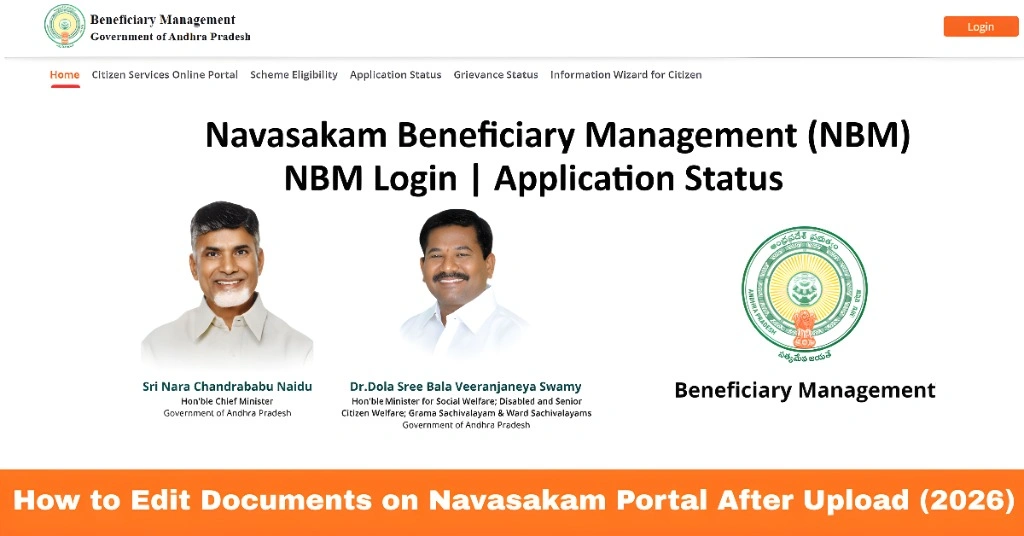
The YSR Navasakam portal is the official platform for Andhra Pradesh citizens to apply for welfare schemes, submit documents, and track application status. Sometimes, after submitting an application, you may realize that a document was incorrect, incomplete, or missing.
This guide explains how to edit or update documents on the Navasakam portal after they have been uploaded, ensuring your application is accurate and complete.
Why You May Need to Edit Documents
Editing documents is necessary if:
Correct and clear documents ensure your application is processed smoothly and reduce the chance of rejection.
You can also read: Fix Login Failed on Navasakam Portal: Quick Solutions (2026)
Step by Step Edit Documents on Navasakam Portal
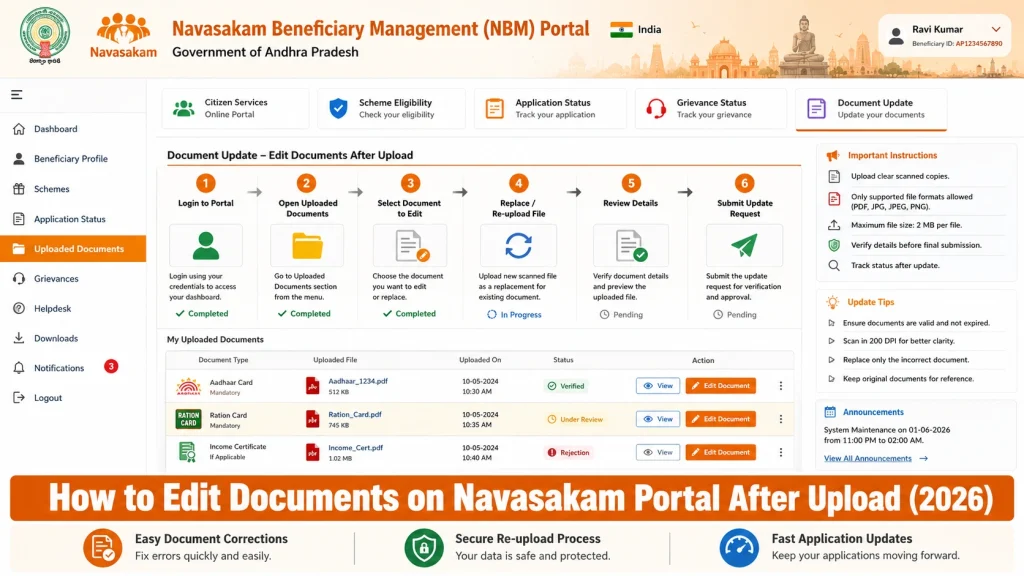
Visit the official NBM portal at gsws-nbm.ap.gov.in
Enter your Aadhaar number
Click Get OTP and enter the OTP received on your registered mobile
Logging in ensures your documents and application are secure.
Look for a menu labeled “My Applications” or “Uploaded Documents”
Select the application for which you want to edit documents
This section shows all documents submitted with the application, including verification status.
Click on the document you wish to update
If the portal allows editing, you will see an “Edit” or “Replace Document” option
Make sure you select the correct document to avoid uploading errors.
Prepare the corrected file in the accepted format (PDF, JPEG, etc.)
Click Upload or Replace
Confirm the upload by checking the updated document in the list
Ensure the file size meets portal limits and the document is clear and legible.
After uploading, click Save or Submit Changes
The portal may provide a confirmation message or a new Reference ID for the updated application
Keep a copy of the confirmation for your records
Saving changes ensures that the updated document replaces the old one for official verification.
In some cases, the portal may restrict editing after submission. If this happens:
They can manually update or replace the document in the system
Visit your Gram Sachivalayam or MPDO office
Provide your application details and explain which document needs correction
Local office support ensures your application remains valid even if the portal limits online edits.
Tips for Preparing Documents Before Upload
Proper preparation can prevent repeated edits and ensure smooth processing:
Preparing documents carefully reduces errors, saves time, and ensures faster verification.
How to Confirm Your Edited Documents Are Accepted
After editing and submitting documents:
Confirming acceptance ensures your application remains complete and avoids delays in benefit processing.
Common Errors and How to Fix Them
Wrong file format:
Convert files to PDF or JPEG
File size too large:
Compress or reduce resolution without losing clarity
Portal errors during upload:
Clear browser cache or try a different browser
Editing option not visible:
Contact your local office for assistance
Knowing these fixes prevents delays and ensures your documents are correctly updated.
FAQs
Final Words
Editing documents on the Navasakam portal is straightforward if you follow the right steps. Log in to the official portal, select the application, replace incorrect files, and save changes.
If online editing is restricted, visiting your local Gram Sachivalayam or MPDO office ensures your documents are updated properly. By preparing documents carefully and confirming acceptance, you increase the chances of smooth processing and timely benefit disbursement.