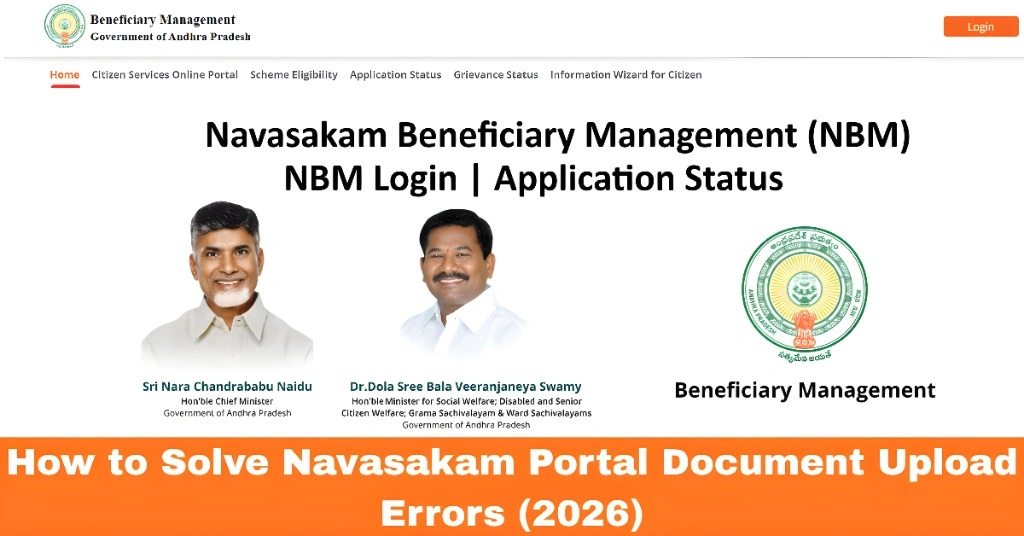
How to Solve Navasakam Portal Document Upload Errors (2026)
Uploading documents on the Navasakam Beneficiary Management (NBM) Portal is an important step when applying for welfare schemes in Andhra Pradesh. But many users face common problems like “Upload Failed,” “Wrong Format,” or “File Too Large.” This guide explains why these errors happen and how to fix them in simple steps.
Why Document Upload Matters
When you apply for a welfare benefit on the Navasakam portal, the correct and clear documents prove your eligibility. Things like Aadhaar, bank passbook pages, income certificates, or caste certificates are usually required. If documents fail to upload, your application may be delayed, rejected, or stuck in verification. Fixing upload errors quickly ensures your application gets processed smoothly and you don’t miss benefits.
You can also read: Navasakam Portal: Eligibility Check Guide for Welfare Schemes
Common Document Upload Errors & How to Fix Them
Problem: You see an error like “Invalid file format.”
Cause: The portal may only accept certain formats (usually PDF, JPEG, PNG).
Fix:
- Convert your file to one of the accepted formats.
- If you have a Word file, save or export it as PDF.
- For photos, use PNG or JPEG.
Tip: Always check the format rules listed near the upload button before you start.
Problem: “Upload failed, file too big.”
Cause: Many portals limit upload size (e.g., max 2 MB).
Fix:
- Use a simple online tool to compress the file.
- For photos, reduce resolution before uploading.
- Make sure the file stays clear and readable even after compression.
Tip: Keep scanned documents simple — no extra borders or dark shadows — so the file size stays small.
Problem: Your upload is accepted, but the verifier says they can’t read it.
Cause: The image is unclear or too dark/bright.
Fix:
- Retake the photo in good daylight.
- Use a flat surface and hold the camera steady.
- Ensure all text is visible and in focus before scanning or saving.
Tip: If using a mobile camera, tap on the document before taking the photo to make sure it’s focused.
Problem: You receive a message that the wrong document was submitted.
Cause: Sometimes users upload the wrong file by mistake.
Fix:
- Carefully read the label (e.g., “Income Certificate,” “Aadhaar”).
- Re‑upload the correct document matching the required type.
Tip: Name your files meaningfully on your phone first — e.g. “Aadhaar_2026.pdf” — so it’s clear what you’re uploading.
Problem: “Upload failed, try again later.”
Cause: Sometimes the portal experiences slow responses or connection timeouts.
Fix:
- Refresh the page and try again.
- Log out and log in again.
- Try uploading at a less busy time (early morning or late evening).
- If nothing works, wait 30 minutes and try again.
Tip: Do not press Back or refresh mid‑upload — it may corrupt the upload.
Step‑by‑Step: Best Way to Upload Documents on NBM Portal
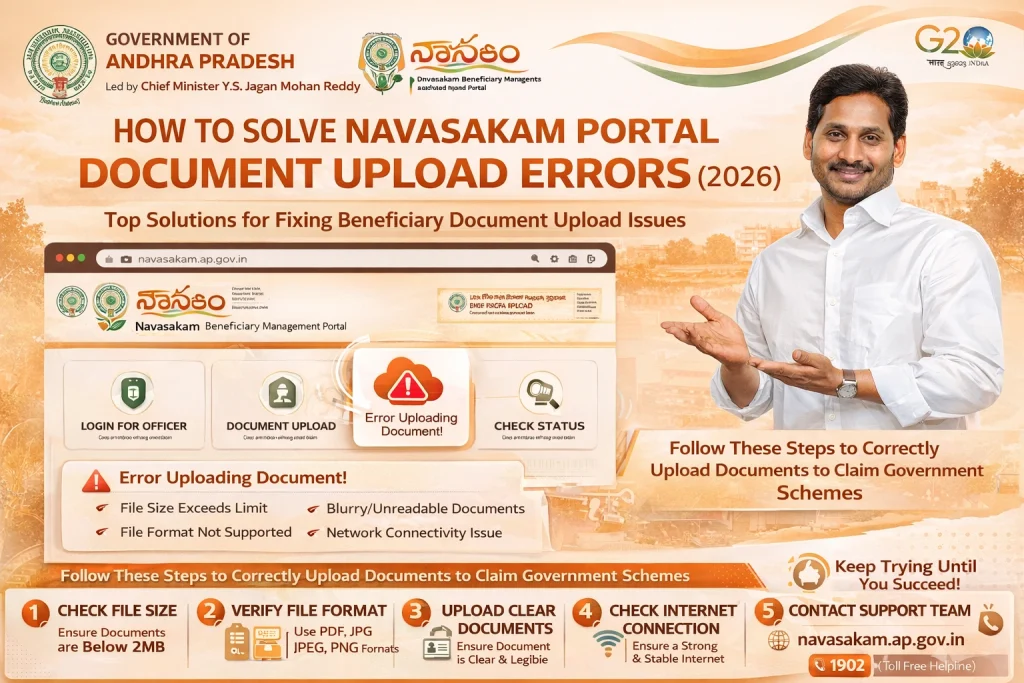
Prepare All Documents First
Scan or photograph all required documents before starting your application.
Check Format and Size Rules
Most portals mention accepted formats and size limits near the upload section.
Use Clear, Readable Files
Make sure text and numbers are visible. Avoid tilted or dark photos.
Upload One Document at a Time
Upload slowly and wait for confirmation before moving to the next.
Save Each File After Upload
If the portal offers a preview, double‑check it before submitting.
Quick Tips to Avoid Upload Errors
FAQs
Final Words
Document upload errors can be frustrating, but most of the time they are easy to fix. The key is to prepare your files carefully, check formats and sizes before you upload, and be patient if the portal is busy. If you’re still stuck, visiting a Common Service Center (CSC) can help you with the upload process.
Getting your documents uploaded correctly means your application moves forward faster — no delays, no extra trips, and a better chance of getting your welfare benefits on time.