How to Reset NBM Login Password: Simple Steps Update 2026
For many people in Andhra Pradesh, the NBM Portal (Navasakam Beneficiary Management Portal) is an important place to log in and check welfare scheme details, application status, and benefit information. But sometimes users forget their password or can’t log in, which can be frustrating.
This guide shows you easy, step‑by‑step instructions to reset your NBM login password so you can get back into the portal quickly.
What You Need Before Resetting Your Password
Before you start, make sure you have:
This information is needed in most cases to reset your password successfully.
You can also read: Common Myths About NBM Status “Not Eligible” Update 2026
Step by Step Reset NBM Login Password
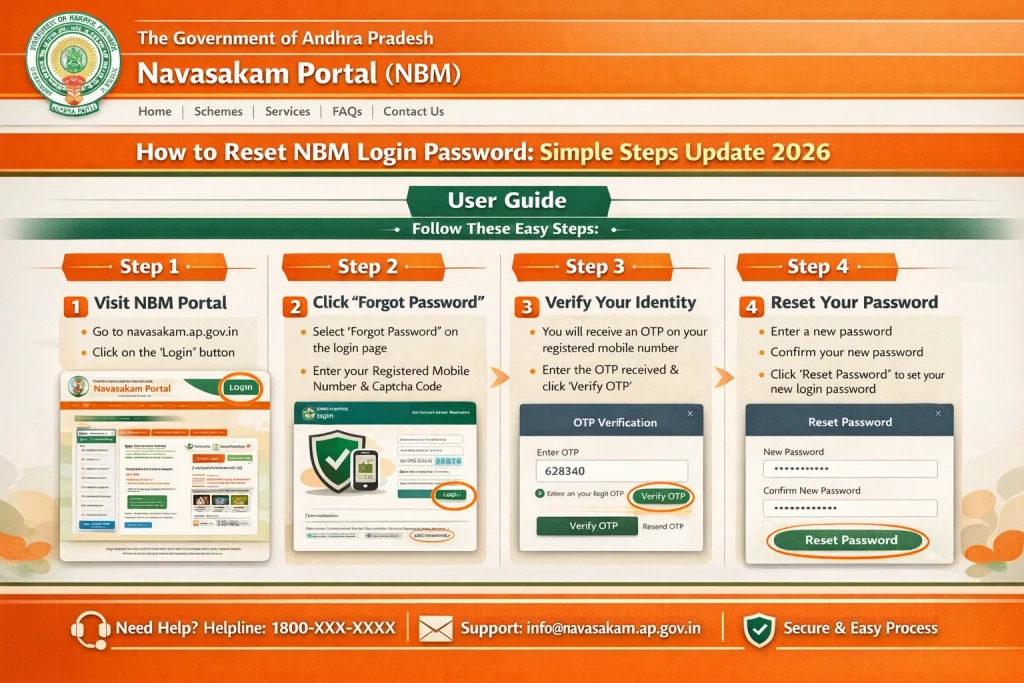
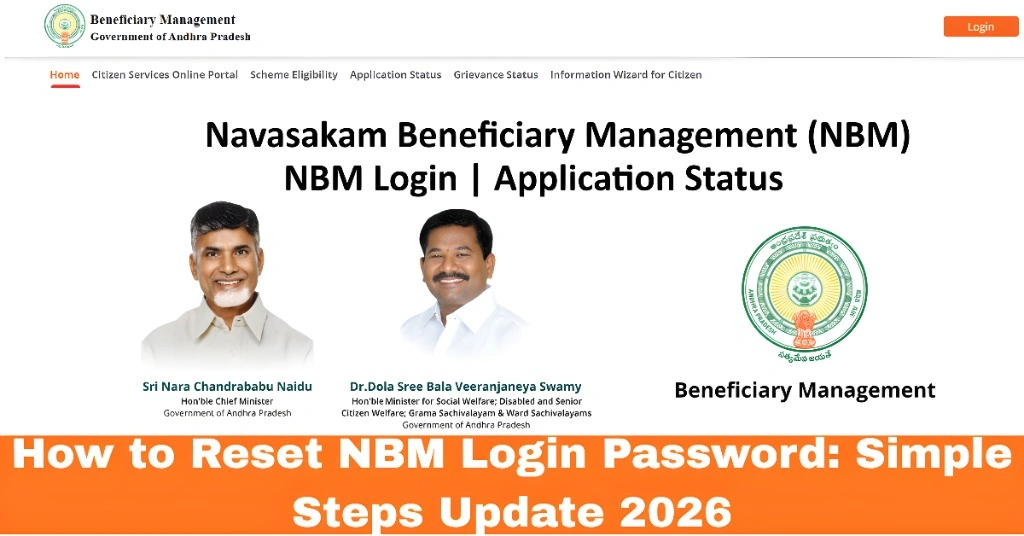
- First, open the official NBM Portal login page in your browser.
- Make sure you are using the correct address:
- gsws‑nbm.ap.gov.in
- This is important so you don’t get errors from fake or unofficial sites.
- Once you’re on the login page:
- Look for a link or button that says “Forgot Password”
- Click on it
- This will take you to the password reset screen.
- On the password reset page, you will be asked to enter:
- • Your registered mobile number
- • Your Aadhaar number
- Make sure you type them exactly as they were saved in the portal. Even a small mistake can cause an error.
- After entering your details:
- • The portal will send an OTP (one‑time password) to your registered mobile number
- • Enter the OTP exactly as you receive it
- If you don’t receive the OTP, wait a few minutes and try again.
- Once the OTP is verified successfully:
- • You will be asked to enter a new password
- • Re‑enter the new password to confirm
- Make sure the password is easy for you to remember but hard for others to guess. Avoid common words or repeated numbers.
- After resetting:
- Go back to the login page
- Enter your Aadhaar number
- Use the new password you just created
- Click Login
- You should now be able to access your account without any errors.
Tips If You Still Can’t Log In
If the password reset does not work, here are some quick checks:
If problems continue, you may need help from local support.
What to Do if You Don’t Get OTP
Not receiving the OTP is one of the most common issues when resetting passwords.
Possible reasons:
Solutions:
If you still don’t get it, contact help support or visit your Gram Sachivalayam office for help.
FAQs
Final Words
Forgetting your NBM Portal password can feel stressful, but the reset process is straightforward if you follow these simple steps. Just make sure you have your registered mobile number and Aadhaar ready, and don’t skip any step. If you run into trouble, local officials can help you out.
With the right steps, you’ll be logged in and checking your application status again in no time.