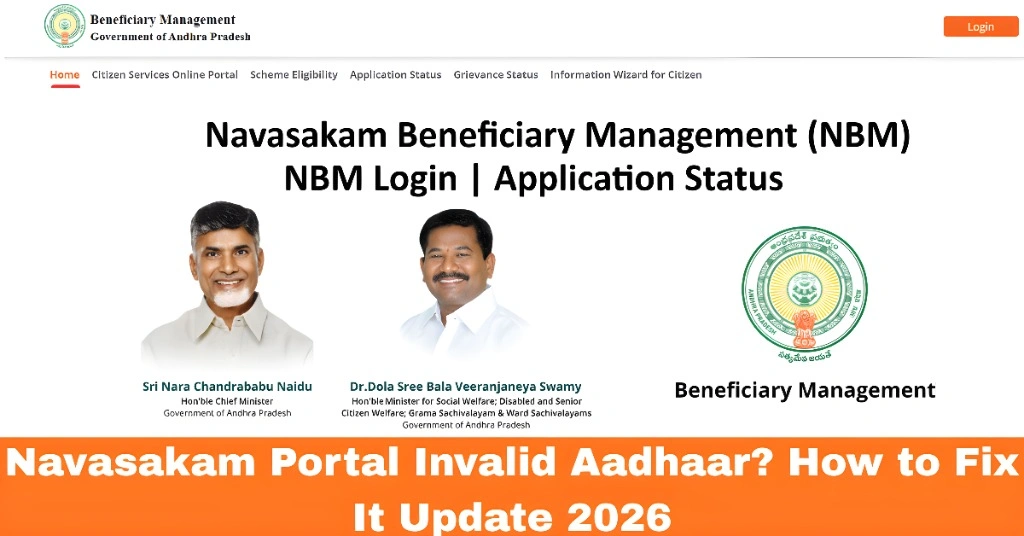
Navasakam Portal Invalid Aadhaar? How to Fix It Update 2026
If you’re trying to log into the Navasakam Beneficiary Management (NBM) Portal and see the error “Invalid Aadhaar,” don’t worry—you’re not alone. Many people face this issue while trying to check their application status or access welfare schemes. In this guide, we’ll explain what might be causing this problem and how you can fix it quickly.
The Navasakam Portal is a platform for residents of Andhra Pradesh to apply for and track government welfare benefits. Aadhaar plays a major role in the process, but sometimes errors can happen. Let’s walk through the steps to fix the “Invalid Aadhaar” error.
What Causes the “Invalid Aadhaar” Error?
There are a few common reasons why you might see this error when using the Navasakam Portal:
Incorrect Aadhaar Number: A small mistake while entering your Aadhaar number can lead to this error.
Mismatch in Data: If the information in your Aadhaar (such as your name, address, or phone number) doesn’t match the details in the Navasakam Portal, you might face issues.
Aadhaar Not Linked to Mobile Number: If your Aadhaar isn’t linked to your mobile number, you may not receive OTPs, which is required to log in.
Server or System Issues: Sometimes, the problem might not be on your end. The server or system might be temporarily down.
You can also read: How to Know if You’re Eligible for Navasakam Schemes 2026
How to Fix the “Invalid Aadhaar” Error
Here are the steps to resolve the “Invalid Aadhaar” issue:
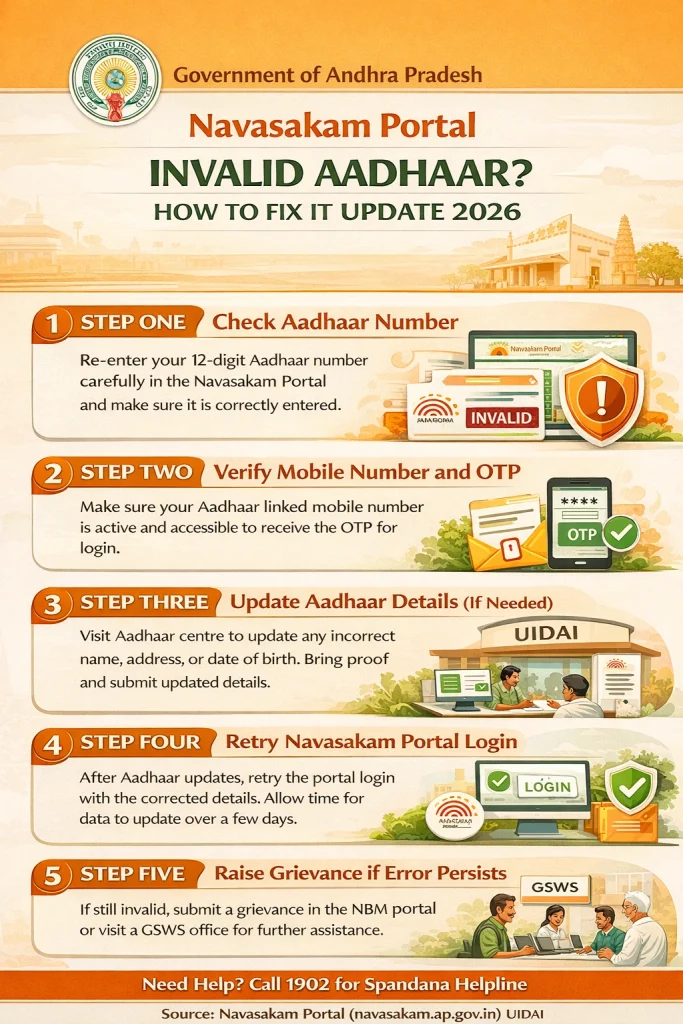
Double-Check Your Aadhaar Number
The most common cause of this error is entering an incorrect Aadhaar number. Even a small typo can prevent successful login.
Tip: Verify your Aadhaar number carefully. Ensure there are no spaces or dashes when entering it.
Verify Aadhaar Information with the Portal
If your Aadhaar number is correct, but you’re still getting the error, there may be a mismatch in the data.
Go to the Aadhaar website or the nearest Aadhaar Enrollment Center to ensure all details, like your name, address, and phone number, are updated and match the records in the Navasakam Portal.
If there’s any mismatch, update your information and try again.
Ensure Your Mobile Number is Linked with Aadhaar
The Navasakam Portal sends OTPs (One-Time Passwords) to your registered mobile number for login. If your Aadhaar is not linked to your mobile number, you won’t receive the OTP.
Tip: Check with your telecom provider or visit the nearest Aadhaar Enrollment Center to link your mobile number with your Aadhaar.
Try Again Later
Sometimes, the issue may be due to server overload or temporary technical issues with the portal.
Tip: If nothing works, try again after some time. You can also attempt logging in during off-peak hours when the server is less busy.
Contact Customer Support
If you have verified your Aadhaar details and the issue persists, reach out to Navasakam Portal support for further assistance. You can usually find the contact details on the portal itself.
FAQs
Final Words
The “Invalid Aadhaar” error on the Navasakam Portal can be frustrating, but it’s easy to resolve with the right steps. Double-check your Aadhaar details, make sure your mobile number is linked, and give the portal a little time if there are server issues.
By following these tips, you’ll be able to fix the error and get back to using the portal for all your welfare scheme applications and updates. If you continue to face issues, don’t hesitate to reach out to the portal’s customer support team.