Troubleshoot Session Expired Error on Navasakam Login (2026)
The Navasakam Portal (NBM) is Andhra Pradesh’s official platform for citizens to apply for welfare schemes, check beneficiary status, and track application progress. A common issue users face is the “Session Expired” error while logging in. This can be frustrating, especially when you are trying to check important updates or submit documents.
Understanding the cause of this error and knowing how to fix it can save time, prevent repeated login failures, and ensure smooth access to the portal.
Why the ‘Session Expired’ Error Occurs
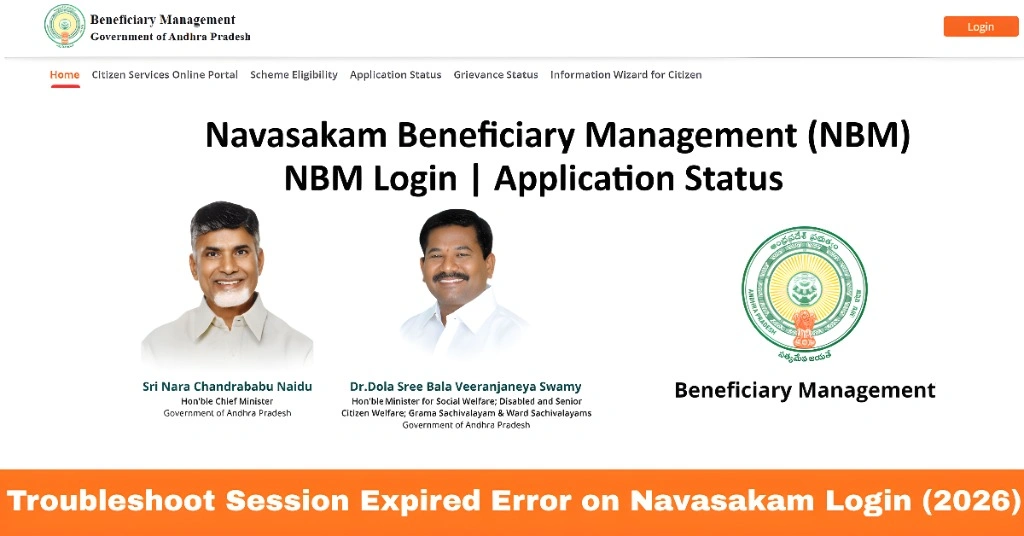
The “Session Expired” message typically appears when your login session ends before completing an action. Here are the main reasons:
Inactivity Timeout:
The portal automatically logs you out after a period of inactivity to protect sensitive user data. If you spend too much time reading or switching between screens, your session can expire.
Browser Issues:
Using outdated browsers or unsupported devices can prevent the portal from maintaining active sessions. Cache, cookies, or outdated scripts may also interfere with login.
Multiple Device Logins:
Logging in from different devices at the same time can trigger session expiration. The system prioritizes the latest login, which logs out previous sessions.
Portal Maintenance or Server Timeout:
Technical limitations or scheduled maintenance can cause the session to expire unexpectedly.
Understanding these causes is the first step toward troubleshooting effectively and avoiding repeated errors.
You can also read: Check Navasakam Portal’s Application Status Offline (2026)
How to Fix ‘Session Expired’ Error on Navasakam Login
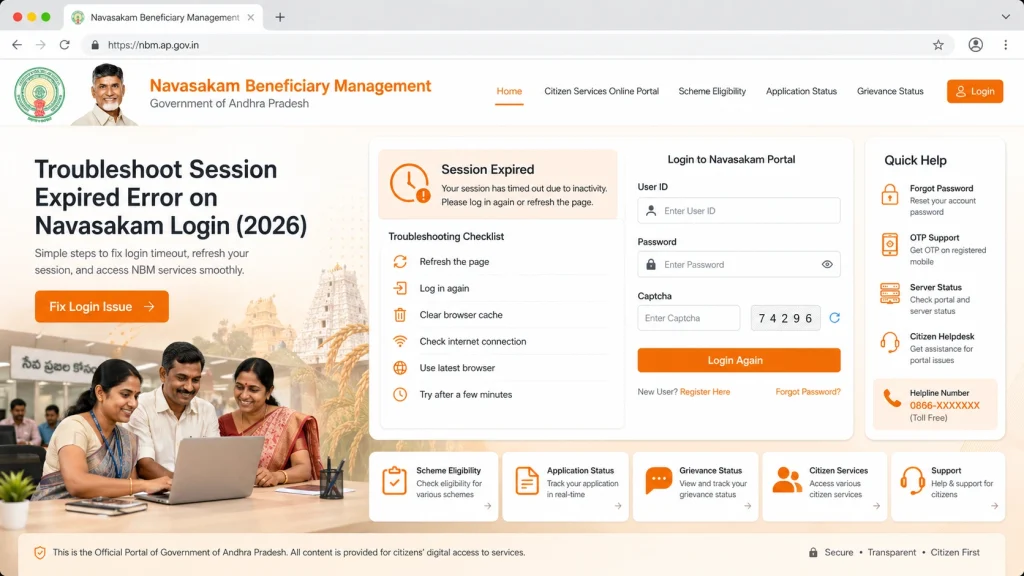
If you encounter the error, click the refresh button or close and reopen your browser. Then log in again with your Aadhaar number and OTP. A simple refresh often restores the session if the problem was temporary.
Old browser data can interfere with the portal’s session management. Clearing your cache and cookies ensures a fresh login and prevents session-related errors. On most browsers, this can be done in settings under Privacy or History, then selecting Clear Cache and Cookies.
The NBM portal works best on modern browsers like Google Chrome, Firefox, Microsoft Edge, or Safari. Avoid outdated browsers such as Internet Explorer or older versions that may not support portal features. Using a supported browser reduces compatibility issues.
Logging in on multiple devices simultaneously can log out one session automatically. Stick to a single device at a time when accessing the portal to prevent session expiration.
A weak or intermittent network can prevent the portal from maintaining a session. Make sure your internet connection is stable, preferably using mobile data or Wi-Fi with consistent speed.
Tips to Prevent Session Expired Errors
Log Out Properly:
Always use the logout button after completing your session to avoid conflicts.
Keep Mobile and Aadhaar Linked:
Ensure your mobile number is active and linked to Aadhaar for smooth OTP verification.
Avoid Inactivity:
Complete your actions promptly. Avoid keeping the portal open on a page for too long without activity.
Use Updated Browsers:
Regularly update your browser to the latest version to maintain compatibility with NBM portal updates.
Bookmark Official Portal:
Always access the official portal link to avoid fake websites or incorrect URLs.
These preventive measures reduce frustration and help you access the portal without repeated errors.
Common Problems and Advanced Solutions
Even after following basic steps, users may still face issues:
Persistent OTP Issues:
If OTPs are delayed or not received, check your mobile network and ensure your number is linked to Aadhaar.
Repeated Session Expired Errors:
Sometimes firewall settings or browser extensions can block sessions. Try using a different browser or device.
System Maintenance:
Check if the portal is under maintenance; official announcements often appear on the homepage.
Multiple Account Conflicts:
Ensure you are logging in with the Aadhaar linked to your application and avoid using other accounts.
Advanced troubleshooting often requires coordination with Gram/Ward Sachivalayam for verification and technical support.
FAQs
Final Words
The “Session Expired” error on Navasakam login is common but usually easy to fix. It occurs due to inactivity, browser issues, multiple device logins, or network interruptions. By refreshing the page, clearing cache, using supported devices, and maintaining a stable internet connection, you can avoid repeated errors.
Following the preventive tips ensures smooth access to the portal, allowing you to check beneficiary status, track applications, and manage welfare schemes efficiently without interruptions. Offline support from Sachivalayam staff is available if technical issues persist, ensuring all citizens can access their benefits without hassle.